

How to Extend the Battery Life of Your Fitness Smartwatch to 10+ Days
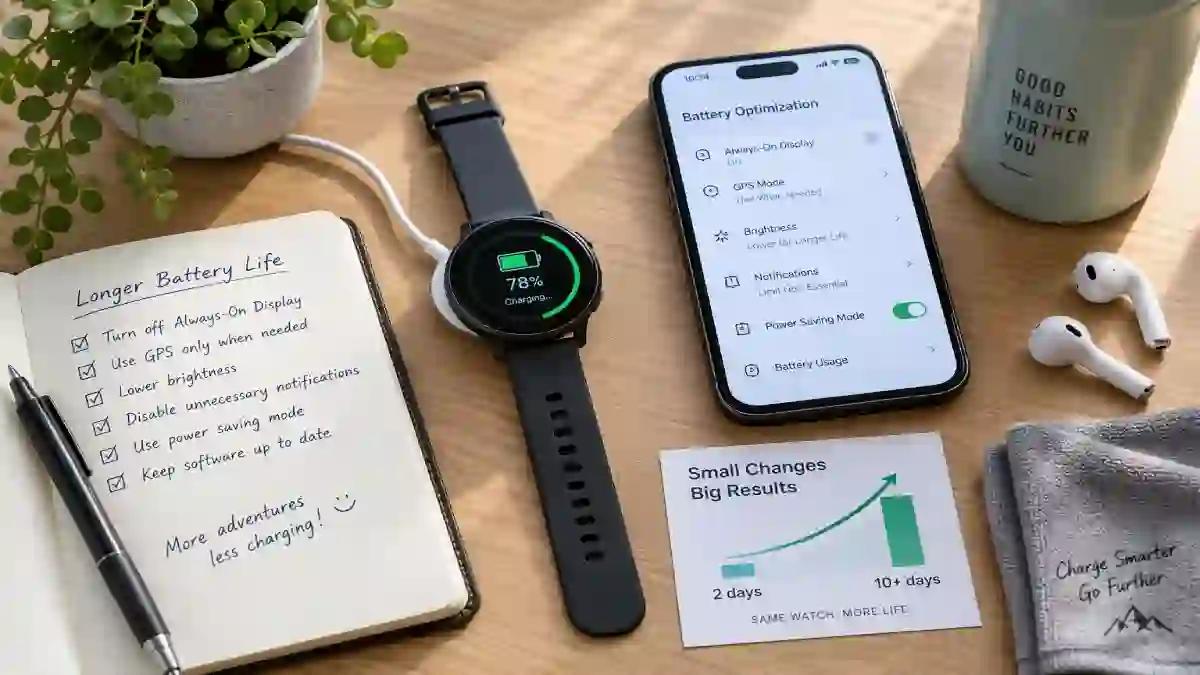
Most fitness smartwatch owners charge their device nightly out of pure habit, assuming that’s just how these things work. It isn’t, not entirely. A genuinely significant chunk of daily battery drain comes from a handful of specific, adjustable settings — the always-on display alone can account for 20 to 40% of daily battery consumption, and GPS tracking can cut runtime by 50 to 70% whenever it’s active. Adjust the right combination of settings, and watches rated for 1–2 days of normal use can realistically stretch toward a week or more, while devices already built for longer battery life can push past the 10-day mark.
This is the full, quantified breakdown: exactly which settings matter most, how much each one actually saves, and the specific adjustments worth making on the major smartwatch platforms.
Jump Links
- Understanding Where Your Battery Actually Goes
- The Highest-Impact Changes
- Medium-Impact Changes
- Smaller Changes That Still Add Up
- Full Impact Comparison Table
- Platform-Specific Settings
- GPS Specifically: How to Get the Most Out of It
- A Sample “Maximum Battery Life” Configuration
- What NOT to Expect From Settings Changes Alone
- Signs Your Battery Itself Needs Attention
- FAQ
- The Bottom Line
Understanding Where Your Battery Actually Goes
Before making changes, it helps to know where the drain is actually coming from. The display is generally responsible for 30 to 40% of total battery consumption on most smartwatches — making it, by a wide margin, the single biggest power consumer on the device, ahead of sensors, connectivity, and background processing combined. GPS tracking during workouts is the second major drain, capable of reducing battery life by 50 to 70% during the period it’s active, since maintaining a continuous satellite connection is genuinely power-intensive. Everything else — notifications, background app activity, continuous heart rate monitoring, Bluetooth and Wi-Fi radios — contributes smaller, individually modest amounts that still add up meaningfully when combined.
The Highest-Impact Changes
1. Turn off the always-on display.
This is consistently identified as the single biggest quick win available. The always-on display keeps your watch face visible at all times rather than only when you raise your wrist or tap the screen, and disabling it can improve battery life by 20 to 40% depending on the specific device and how it’s measured. On most platforms: Settings → Display & Brightness → Always On → toggle off.
2. Limit GPS use to only when actively needed.
Since GPS can cut battery life by 50 to 70% while active, the biggest single behavioral change is simply not leaving GPS running longer than necessary — start it only when a workout begins, and end the session promptly rather than letting it continue tracking after you’ve finished.
3. Reduce screen brightness.
Dropping brightness from 100% to around 70% has been specifically measured to add roughly two additional days of battery life on some devices. Since the display is already the single largest power consumer, even a moderate brightness reduction compounds meaningfully over a full day of ambient use.
Medium-Impact Changes
4. Use a power-saving or battery-saver mode during workouts specifically.
Nearly every major platform offers a dedicated power-saving mode for active tracking sessions, which reduces GPS polling frequency and heart rate sampling rate without turning either feature off entirely. This can extend workout-specific battery life dramatically — in some cases turning a device rated for roughly 14 hours of continuous GPS tracking into one capable of 35+ hours with the mode enabled.
5. Switch continuous heart rate monitoring to “smart” or interval-based measurement.
Rather than measuring heart rate continuously, switching to a smart measurement mode (checking roughly every 10 minutes instead of constantly) meaningfully reduces sensor-related battery drain, at the cost of slightly less granular heart rate data throughout the day.
6. Filter or limit notifications to essential apps only.
Every notification that triggers your watch’s screen and a haptic buzz draws power; limiting notifications specifically to the apps you actually need alerts from (rather than every app on your phone) has been measured to save roughly 5 to 15% of battery over a full day.
Smaller Changes That Still Add Up
7. Turn off Wi-Fi and Bluetooth when not actively needed.
Keeping these radios active at all times, even when you’re not using any feature that requires them, contributes to ongoing background drain that’s easy to overlook.
8. Disable unnecessary sensors you don’t actively use.
Features like SpO2 tracking, skin temperature sensing, or stress monitoring, if run continuously rather than periodically, each contribute incremental drain; disabling ones you don’t personally find valuable is a reasonable trade-off for extra battery life.
9. Turn on scheduled sleep or theater mode overnight.
Scheduling your watch to enter a lower-power state automatically during sleep hours has been measured to save roughly 5 to 10% of overnight battery usage, a meaningful contribution given how many hours of the day are spent asleep.
10. Keep your watch’s software updated.
Manufacturers frequently release efficiency improvements through software updates; staying current can improve overall battery performance and stability beyond what manual settings changes alone can achieve.
Full Impact Comparison Table
| Setting Change | Estimated Battery Savings | Trade-Off |
|---|---|---|
| Disable always-on display | 20–40% | Must raise wrist or tap to see time |
| Limit GPS to active workouts only | Avoids 50–70% drain during GPS use | None if GPS isn’t needed outside workouts |
| Reduce brightness (100% → 70%) | ~2 extra days on some devices | Slightly dimmer screen in bright light |
| Enable power-saving mode during workouts | Can more than double GPS tracking time | Slightly less frequent GPS/HR readings |
| Smart/interval heart rate monitoring | Meaningful reduction in sensor drain | Less granular continuous HR data |
| Filter notifications to essentials | 5–15% | Fewer real-time alerts |
| Scheduled sleep/theater mode overnight | 5–10% | Reduced functionality during sleep hours |
| Turn off unused Wi-Fi/Bluetooth | Small but consistent savings | Must manually re-enable when needed |
Platform-Specific Settings
Apple Watch:
- Settings → Display & Brightness → Always On → toggle off
- Settings → Workout → enable Low Power Mode, and for an additional boost: Settings → Workouts → “Fewer GPS and heart rate readings”
- Low Power Mode specifically can extend some models’ battery life to 60 hours or more under reduced GPS and heart rate polling.
Samsung Galaxy Watch:
- Power saving mode can disable the always-on display, Wi-Fi, and wake gestures simultaneously, while also limiting background network activity, sync frequency, processor performance, location use, screen brightness, and timeout duration all at once.
Fitbit:
- Disable always-on display in display settings.
- Limit “Quick View” (raise-to-wake) sensitivity if available, which reduces how often the screen activates unintentionally.
- Use interval-based rather than continuous heart rate tracking where the option is available.
Garmin:
- Use Battery Saver or a custom power mode, which typically allows manually adjusting GPS accuracy, display timeout, and background sensor activity independently for fine-tuned control.
Amazfit/Xiaomi:
- General guidance across this brand family specifically recommends reducing screen brightness, disabling unnecessary notifications, limiting GPS and continuous heart rate monitoring, and turning off Wi-Fi or Bluetooth when not actively needed — the same core principles that apply broadly, with Amazfit’s own power-saving modes typically accessible directly from the quick settings menu.
GPS Specifically: How to Get the Most Out of It
Since GPS is consistently the single biggest drain during active use, a few specific practices meaningfully extend GPS-tracked workout time without sacrificing the feature entirely:
- Only activate GPS at the actual start of a workout, rather than leaving a workout session running (with GPS active) before and after the activity itself.
- End workouts promptly once you’ve finished, rather than letting a session continue tracking in the background.
- Avoid running multiple fitness apps simultaneously that might each independently request GPS access.
- Use a dedicated low-power or reduced-accuracy GPS mode when available, which polls satellite position less frequently in exchange for significantly extended tracking duration — a reasonable trade-off for longer, lower-intensity activities like hiking where split-second positioning accuracy matters less than for a competitive race.
A Sample “Maximum Battery Life” Configuration
For anyone specifically trying to stretch a device toward the 10-day mark, a reasonable combined settings profile looks like:
- Always-On Display: Off
- Brightness: Medium-low (around 50-70%)
- Heart rate monitoring: Smart/interval mode rather than continuous
- Notifications: Limited to essential apps only
- GPS: Only active during actual tracked workouts, using a power-saving GPS mode where available
- Wi-Fi/Bluetooth: Off when not actively syncing or in use
- Sleep/theater mode: Scheduled automatically overnight
This combination, stacked together rather than applied individually, is what typically produces the most dramatic total improvement, since each adjustment’s savings compound with the others rather than operating in isolation.
What NOT to Expect From Settings Changes Alone
It’s worth being honest about the limits of pure settings optimization. Devices with genuinely small batteries to begin with, or those running power-hungry always-on color displays by hardware design, will never reach 10+ days of battery life purely through software adjustments, regardless of how aggressively you optimize settings — there’s a hardware ceiling that settings alone can’t exceed. Realistically, these adjustments produce their most dramatic results on devices already designed with longer battery life in mind (watches rated for 5+ days under normal settings), pushing them meaningfully further, rather than transforming a 1-day smartwatch into a 10-day one.
Signs Your Battery Itself Needs Attention
If battery life has been noticeably declining over months or years despite consistent settings and usage habits, that’s a sign of normal battery aging rather than something settings adjustments can reverse. Lithium-ion batteries in smartwatches degrade gradually with charge cycles over time, and once that degradation sets in, no combination of display, GPS, or notification settings will restore the device’s original battery performance — at that point, a battery replacement (where supported) or a device upgrade becomes the more realistic path forward.
📌 YOU MIGHT ALSO LIKE:
Smart Rings vs. Fitness Tracker Wristbands: Features Per Dollar Comparison
5 Refurbished Tech Sites Every Frugal Athlete Needs to Bookmark (Save 60% on Garmin)
FAQ
What’s the single biggest setting I can change to improve battery life?
Turning off the always-on display is consistently identified as the highest-impact single change, capable of improving battery life by 20 to 40% depending on the specific device.
How much battery does GPS actually use?
GPS tracking can reduce battery life by 50 to 70% during the period it’s actively running, making it the second-biggest drain on most smartwatches after the display itself.
Can these settings changes really get my watch to last 10+ days?
For devices already designed with longer battery life in mind (rated for 5+ days under default settings), yes, stacking these adjustments together can realistically push runtime past 10 days. For devices with a genuinely small battery or an always-on hardware display by design, there’s a hardware ceiling these settings can’t exceed.
Does lowering screen brightness really make a noticeable difference?
Yes. Since the display accounts for 30 to 40% of total battery consumption on most devices, even a moderate brightness reduction (from 100% down to around 70%) has been measured to add roughly two additional days of battery life on some models.
Should I turn off heart rate monitoring entirely to save battery?
It’s not necessary to turn it off completely for most people. Switching from continuous to smart or interval-based heart rate monitoring (checking periodically rather than constantly) captures most of the available battery savings while still providing reasonably useful heart rate data throughout the day.
My battery life has gotten worse over time even with the same settings — what’s going on?
This is typically normal battery aging rather than a settings issue. Lithium-ion batteries degrade gradually with use over months and years, and settings adjustments can’t reverse that underlying hardware degradation.
The Bottom Line
A fitness smartwatch’s battery life isn’t fixed the moment you take it out of the box — a handful of specific, quantifiable settings changes, led by disabling the always-on display and limiting GPS to actual workout time, can meaningfully extend runtime, often doubling or more than doubling what a device delivers under default settings. Stack the highest-impact changes together, apply the platform-specific tweaks for your particular device, and a watch rated for just a day or two of use can realistically stretch well past a week between charges.
For more budget-friendly tech and wellness guides, check out more posts over at The Frugal Glow.
Sources: